Abandoned Carts
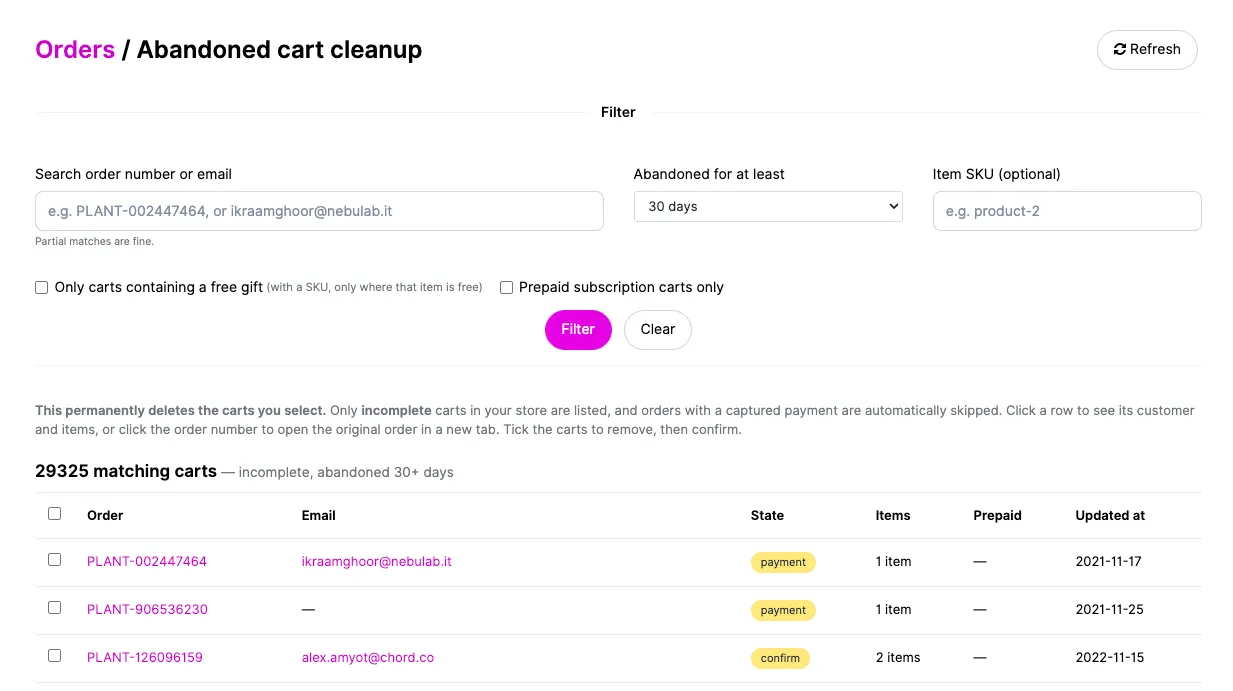
The Abandoned Cart Cleanup page lets you find and permanently delete incomplete carts that shoppers never checked out. Over time a store accumulates thousands of these — sessions where someone added items but never paid. This page gives you a filtered, searchable list and a safe way to clear them out in bulk.
It only ever touches incomplete carts, and it automatically skips any cart with a captured payment, so a real, paid order can never be deleted here.
Typical use: clean up stale carts before a report, or remove a batch of free-gift or promo carts created during a campaign.
How It Works
flowchart LR
    A[Filter the list] --> B[Review matching carts]
    B --> C{Select}
    C -->|Tick specific carts| D[Delete selected]
    C -->|Delete all matching| E[Delete all]
    D --> F[Background job runs]
    E --> F
    F --> G[Carts removed<br>paid carts skipped]
You filter the list, pick the carts (or all matching carts), type DELETE to confirm, and the deletion runs in the background. Carts with a completed payment are skipped automatically, even when you choose "Delete all matching."
Getting Started
Go to Orders → Abandoned carts.
- Use the Filter panel to narrow the list (see Filters below).
- Review the matching carts. Click a row to preview its customer and items; click the order number to open the full order in a new tab.
- Tick the carts you want to remove — or use one of the "Delete all matching" options.
- Type DELETE in the confirmation box.
- Click Delete selected carts (or Delete all N matching carts).
Deletion runs in the background. Refresh the page after a moment to see carts drop off the list.
Filters
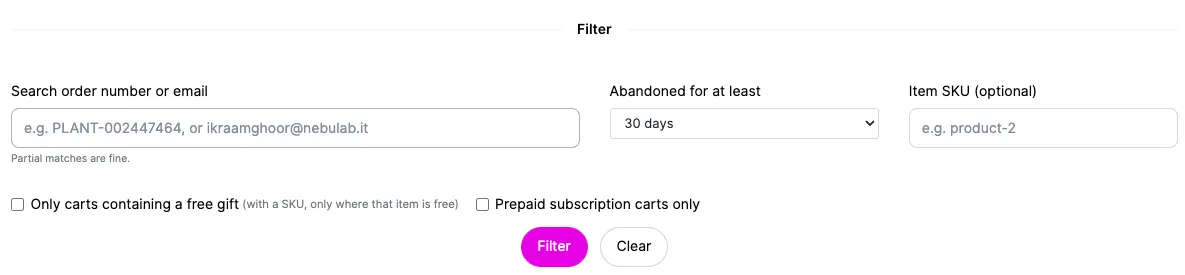
- Search order number or email — Partial matches are fine (e.g. R123 or part of a shopper's email).
- Abandoned for at least — Only show carts untouched for this long: Any age, 1, 7, 14, 30, or 90 days. Defaults to 30 days, so you won't accidentally see carts a shopper is still actively using.
- Item SKU (optional) — Only carts containing this SKU.
- Only carts containing a free gift — Carts that include a fully discounted (free) line item. Combined with a SKU, it matches only carts where that item is free.
- Prepaid subscription carts only — Carts that contain a prepaid subscription.
Click Filter to apply, or Clear to reset.
Reviewing carts
- Preview a cart: click any row to expand its customer email, state, and line items (product, SKU, quantity) without leaving the page.
- Open the full order: click the order number to open it in a new tab.
- Customer link: if the cart belongs to a registered user, their email links to the customer record; otherwise it's a plain email link.
The list shows up to 100 carts at a time. If more match, you'll see "Showing the first 100 of N" — narrow the filters to see and select the rest.
Deleting carts
There are two ways to delete, and both require typing DELETE to confirm first:
- Delete selected carts — Removes only the carts you've ticked. Use the header checkbox to select every cart currently shown.
- Delete all N matching carts — Removes every cart matching the current filters, not just the ones shown on screen. Use this to clear large batches in one go.
Both run as a background job, so the page stays responsive. Deletion is permanent — there is no undo.
FAQ
Can this delete a real, paid order?
No. Only incomplete carts are ever listed, and any cart with a captured payment is automatically skipped — even when you choose "Delete all matching." Paid orders are never removed here.
What does "Delete all matching" cover?
Every cart that matches your current filters, including ones beyond the first 100 shown on screen — not just the visible or selected rows.
The carts didn't disappear right away — why?
Deletion runs in the background. Give it a moment and refresh the page.