Membership Tiers
Admins can upgrade or downgrade a customer's membership tier mid-billing cycle. The system automatically calculates prorated charges or refunds based on the remaining days in the cycle.
Feature flag: SUBSCRIPTION_MEMBERSHIP_UPGRADE disabled by default
Setup
1. Create an Option Type for Tiers
Go to Products > Option Types and create a new option type:
- Name: membership-tier
- Presentation: Membership Tier
- Add option values for each tier (e.g., basic, premium, vip)
2. Create a Membership Product
Go to Products > New Product and create a single product that represents your membership:
- Name: e.g., Membership
- Option Types: assign the membership-tier option type created above
3. Create Variants for Each Tier
Under the membership product, create one variant per tier:
- Basic — Price: $20.00, Option: basic
- Premium — Price: $36.00, Option: premium
- VIP — Price: $50.00, Option: vip
All tiers must be variants of the same product. The system detects tier changes by checking that the old and new variants share the same product_id.
Upgrading a Tier
When you change a subscription to a higher-priced tier, the customer is charged immediately for the prorated difference.
Current membership tier | Replace existing variant with higher tier |
|---|---|
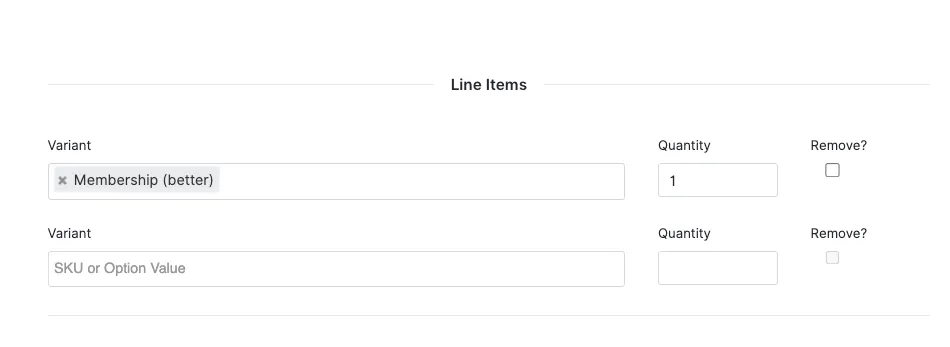 | 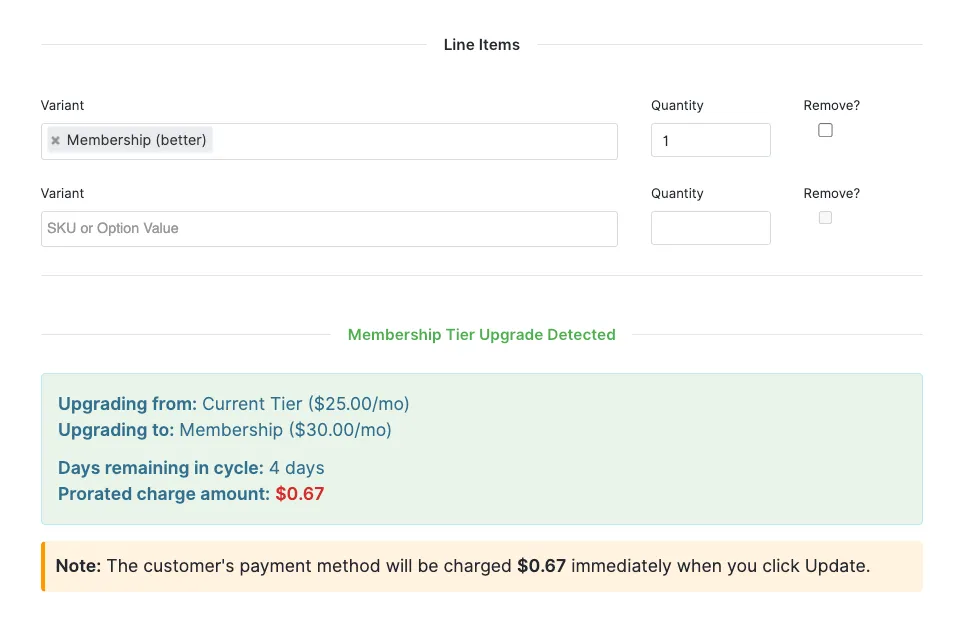 |
| |
| |
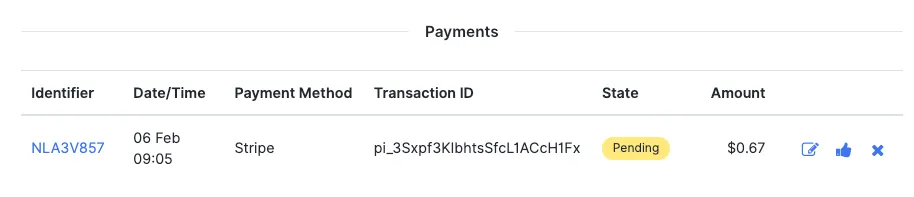
Once you update the subscription, an order will be created with the payment.
Downgrading a Tier
When you change a subscription to a lower-priced tier, you can choose how to handle the refund:
- No refund - Customer keeps credit for next cycle
- Issue store credit - Creates store credit on the customer's account
- Refund to original payment method - Refunds to the card used for the subscriptio