Enabling Server Events
When installed on your storefront, Chord typically sends tracking events to the CDP from two sources:
- Your website front-end, either using Chord's Shopify theme snippet or @chordcommerce/analytics, and;
- Chord's server events service, which sends tracking events from a Shopify custom source function in your Segment workspace in response to webhook triggers from Shopify.
When Chord provisions your Segment workspace, it will include Chord's Shopify webhook source. This code listens for webhook events from Shopify and transforms them into Segment events.
Requirements
Locate Chord's webhook source in your Segment workspace, named "Shopify Webhooks." Chord typically creates this webhook source as part of your Segment workspace provisioning. You'll need to update the settings of this source during the Create an Admin API Key step, and you'll need the webhook URL of this source during the Create Webhook Subscriptions step. If you can't find the Segment source or aren't sure which one it is, please contact Chord.
Installation
There are two steps to configuring server events: creating an Admin API key and adding it to the Chord Segment source; and subscribing the Segment source to Shopify webhook events.
Create an Admin API key
Chord's Segment source requires an admin API key with the read_orders scope to retrieve order details from Shopify. To generate this admin API key, we recommend creating a custom Shopify app in your Shopify account for Chord, and using the Admin API access token from this custom app. This makes it easy to manage access.
Create a new custom app in your Shopify admin by navigating to Settings > Apps and sales channels > Develop apps > Create an app. Once the app is created, click Configure Admin API Scopes. Choose read_orders only and hit Save.
On the Overview tab, you should see a prompt to Install to get your access token. Click Install app. Now you should see this:
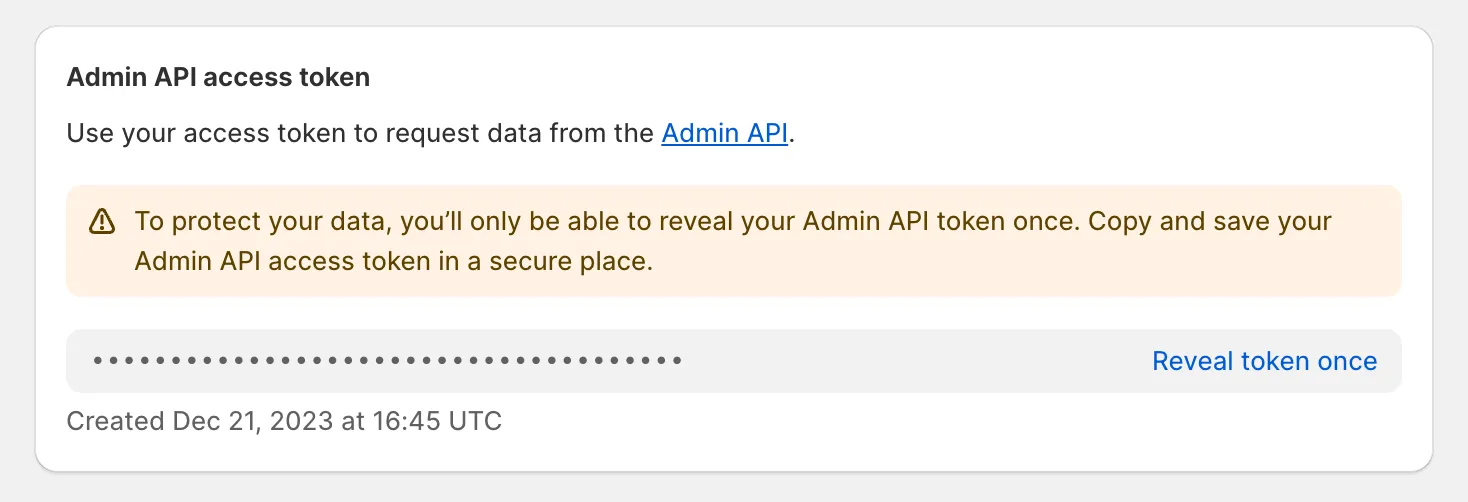
Copy the Admin API access token. In your Segment workspace, navigate to your Chord webhook source and view the settings under Settings > Connection. Enter the Admin API access token you just created in the Access Token or accessToken settings field, and Save Changes.
Create Webhook Subscriptions
In your Segment workspace, navigate to your Chord webhook source and find the webhook URL for the source under the Configure your webhook heading.
Now you'll create webhook subscriptions in Shopify. You can create webhook subscriptions either via the Shopify admin or the Admin API. You can use the Admin API access token you created for Chord to create the subscription via the Admin API.
Create a subscription for each server event you'd like Chord to send to Segment. Each subscription will have the same address, which is the URL you copied from your Chord Segment source. The following webhook topics are supported:
- checkouts/create: sends Chord's "Checkout Created" event
- orders/create: sends Chord's "Order Completed" event
- refunds/create: sends Chord's "Order Refunded" event
Shopify's webhook testing doesn't actually include a payload that matches a real webhook payload, so we recommend completing a test transaction in your Shopify store to verify that server events are flowing as expected. You can view the Segment events in the Debugger tab of the Shopify webhook source in your Segment workspace.