Shopify consent management
Chord integrates with Shopify's Customer Privacy API to manage user consent preferences. This ensures events are only sent to destinations that the customer has consented to, helping you comply with privacy regulations like GDPR and CCPA.
How It Works
Before sending any events, Chord checks the customer's consent status using Shopify's Customer Privacy API:
- The custom web pixel checks if tracking is allowed by verifying that both analyticsProcessingAllowed() and marketingAllowed() return true.
- If tracking is not allowed, no events are sent to the Chord CDP.
- If tracking is allowed, a consent object is attached to every event describing the customer's preferences for each consent category.
- The Chord CDP uses the consent category mappings you configure to determine which destinations receive each event.
Step 1: Confirm Pixel Settings
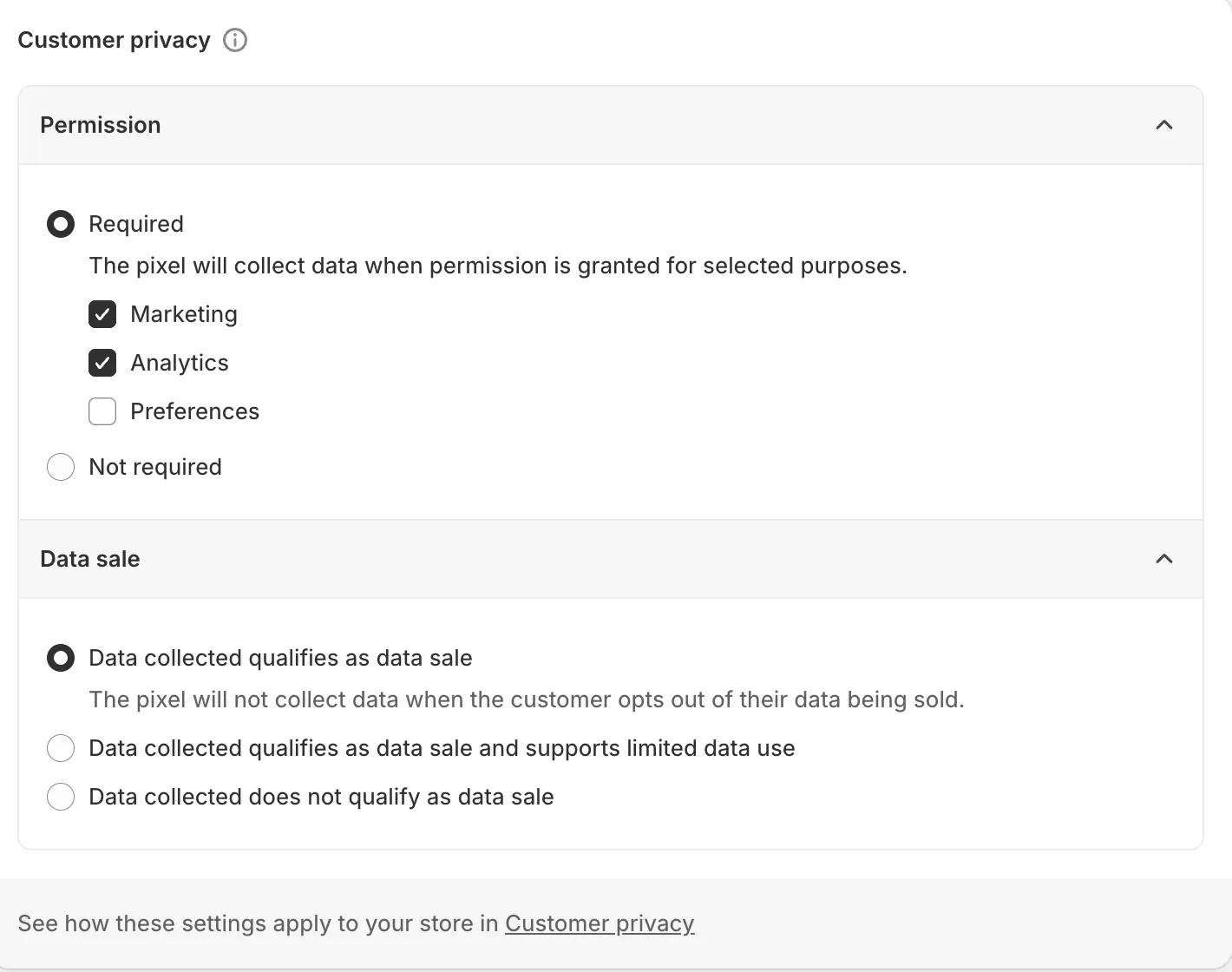
In your Shopify Admin, go to Customer Events > Custom Pixels > Your Chord CDP Pixel and confirm the options in the Customer privacy configuration above the pixel code
Note: These settings are recommended by the Chord team as the CDP pixel is deployed with these permissions in mind. If these need to be set to a different configuration, please reach out to [email protected]
Permission
- Required - selected
- Marketing - enabled
- Analytics - enabled
Why "Required" with Marketing + Analytics:
When set to "Required", Shopify populates the customerPrivacyStatus object that the pixel reads. The Marketing and Analytics checkboxes tell Shopify that these are the consent categories relevant to this pixel. Without them, the consent fields may not reflect the visitor's actual choices.
Data Sale
- Data collected qualifies as data sale - selected
Why "Data collected qualifies as data sale":
This ensures the saleOfDataAllowed flag is populated when a visitor opts out of data sale (e.g., under CCPA). If set to "does not qualify", this flag would always return as allowed, even if the visitor opted out.
Step 2: Configure Customer Privacy in Shopify
In your Shopify Admin, go to Settings > Customer privacy.
Cookie Banner (Required)
The cookie banner must be enabled for Chord's consent management to work. Without it, the Customer Privacy API is unavailable and Chord will not send any events.
To enable:
- Select Cookie banner > Activate cookie banner.
- Choose the regions where the banner should appear.
- Click Activate.
Alternatively, to use a custom banner from the Shopify App Store:
- Select Cookie banner > More actions > Use custom cookie banner.
- Choose regions and click Activate.
Data Sales Opt-Out Page (Recommended)
Allows visitors to control how their data is shared with third parties.
- Select Data-sales opt-out page.
- Choose regions and click Activate.
Step 3: Configure Consent Categories in Chord CDP
Shopify's Customer Privacy API provides four consent categories. You need to map these in the Chord CDP so events are routed to the correct destinations based on customer preferences.
In the Chord CDP, navigate to CDP > Consent Categories > Create Your First Consent Category and add these four categories:
Category Name (customizable) | Category ID (must be exact) |
|---|---|
Performance cookies | analytics |
Marketing cookies | marketing |
Preference cookies | preferences |
Sale of data | sale_of_data |
For each category, choose which destinations should be mapped. Mapping a destination to a category means that destination will only receive events if the customer has consented to that category.
Consent Category Definitions
- analytics — Customer analytics about storefront usage and interactions. Collected by Shopify's cookie banner as "performance cookies."
- marketing — Marketing, attribution, and targeted advertising. Collected as "marketing cookies."
- preferences — Customer preferences such as language, currency, and size. Collected as "preference cookies."
- sale_of_data — Sharing data with third parties for behavioral advertising. Collected by Shopify's data sales opt-out page.
How Consent Is Transmitted
The custom web pixel reads the customer's consent preferences from the Customer Privacy API and constructs a consent object on every event:
{
  "analytics": true,
  "marketing": true,
  "preferences": true,
  "sale_of_data": false
}
The values are determined by Shopify's Customer Privacy API methods:
Category | Shopify API Method |
|---|---|
analytics | customerPrivacy.analyticsProcessingAllowed() |
marketing | customerPrivacy.marketingAllowed() |
preferences | customerPrivacy.preferencesProcessingAllowed() |
sale_of_data | customerPrivacy.saleOfDataAllowed() |
Global Privacy Control (GPC)
Chord CDP recognizes the Global Privacy Control signal as an opt-out of data sales. If a customer has GPC activated in their browser and is browsing from a region where opting out is supported, the sale_of_data category will be set to false.
No Additional Code Required
Consent management is handled automatically by the custom web pixel and the Chord CDP. You do not need to add any consent-related code to your storefront — the web pixel reads consent status from Shopify's Customer Privacy API and includes it with every event.