Chord Data Ingestor App
5 min
Creating Custom Shopify Apps on behalf of Chord
Step 1: Create the App
- Go to your Shopify Dev Dashboard
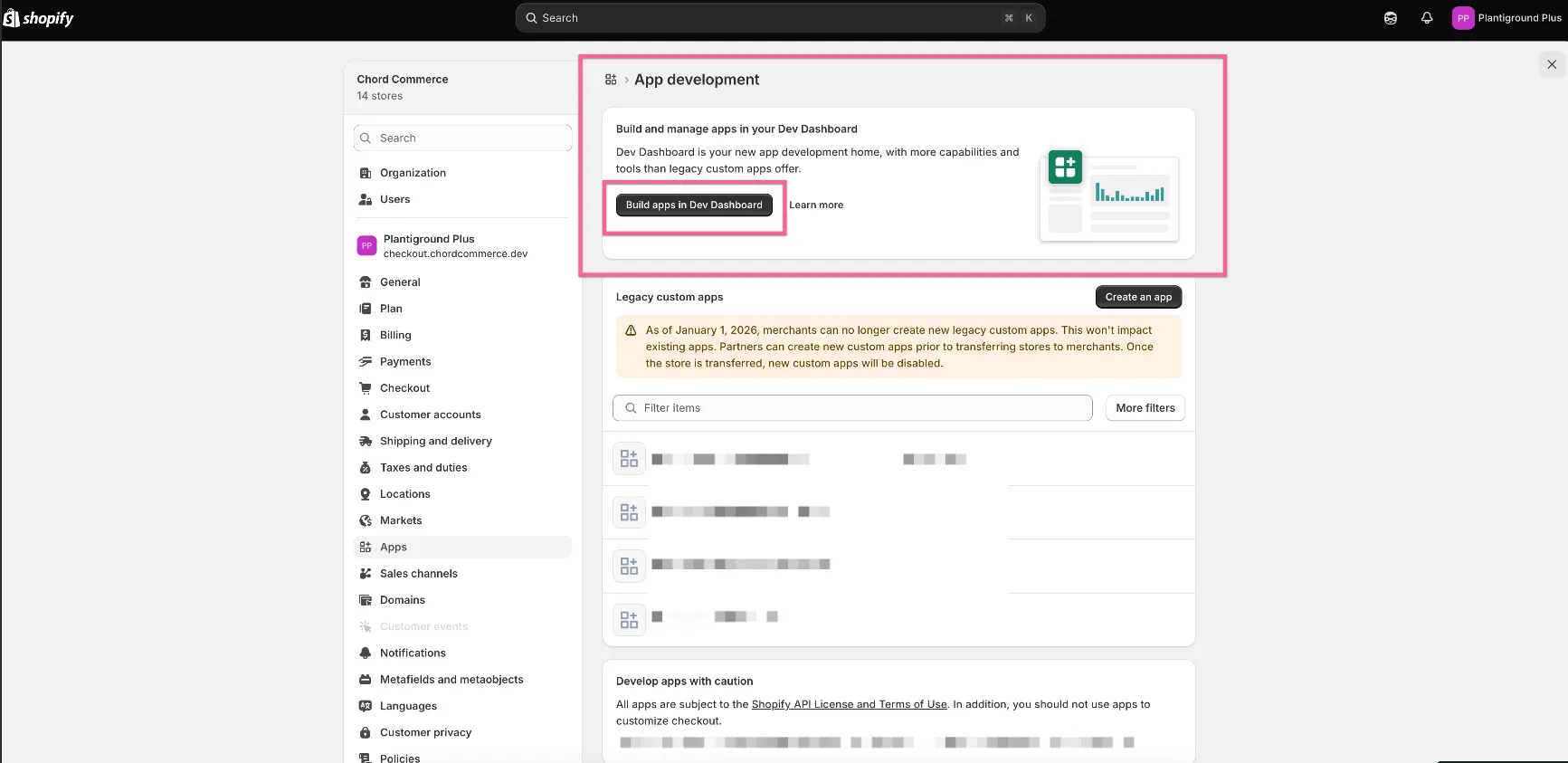
- In the navigation menu, click Apps → Create app
- Under Start from Dev Dashboard, enter the app name Chord Data Ingestor
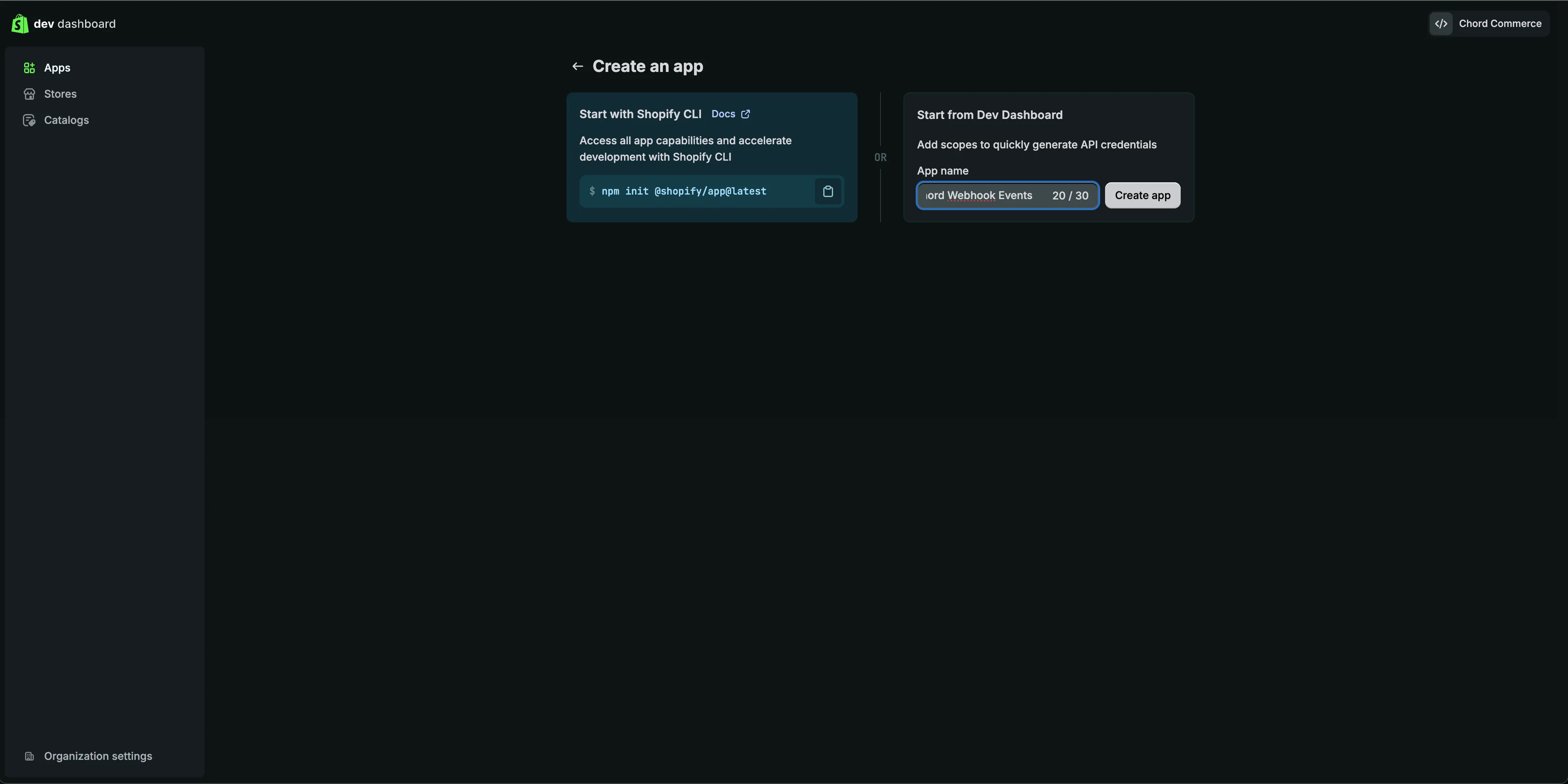
- Click Create
Step 2: Configure Access Scopes
- Leave the form settings as-is
- In the API Access section, paste the following scopes:
read_all_orders,read_reports,read_assigned_fulfillment_orders,read_customers,read_discounts,read_fulfillments,read_inventory,read_locations,read_merchant_managed_fulfillment_orders,read_orders,read_product_feeds,read_product_listings,read_products,read_returns,read_shipping,read_third_party_fulfillment_orders
- Click Release
Step 3: Install the App
- On the app Home page, click Install app
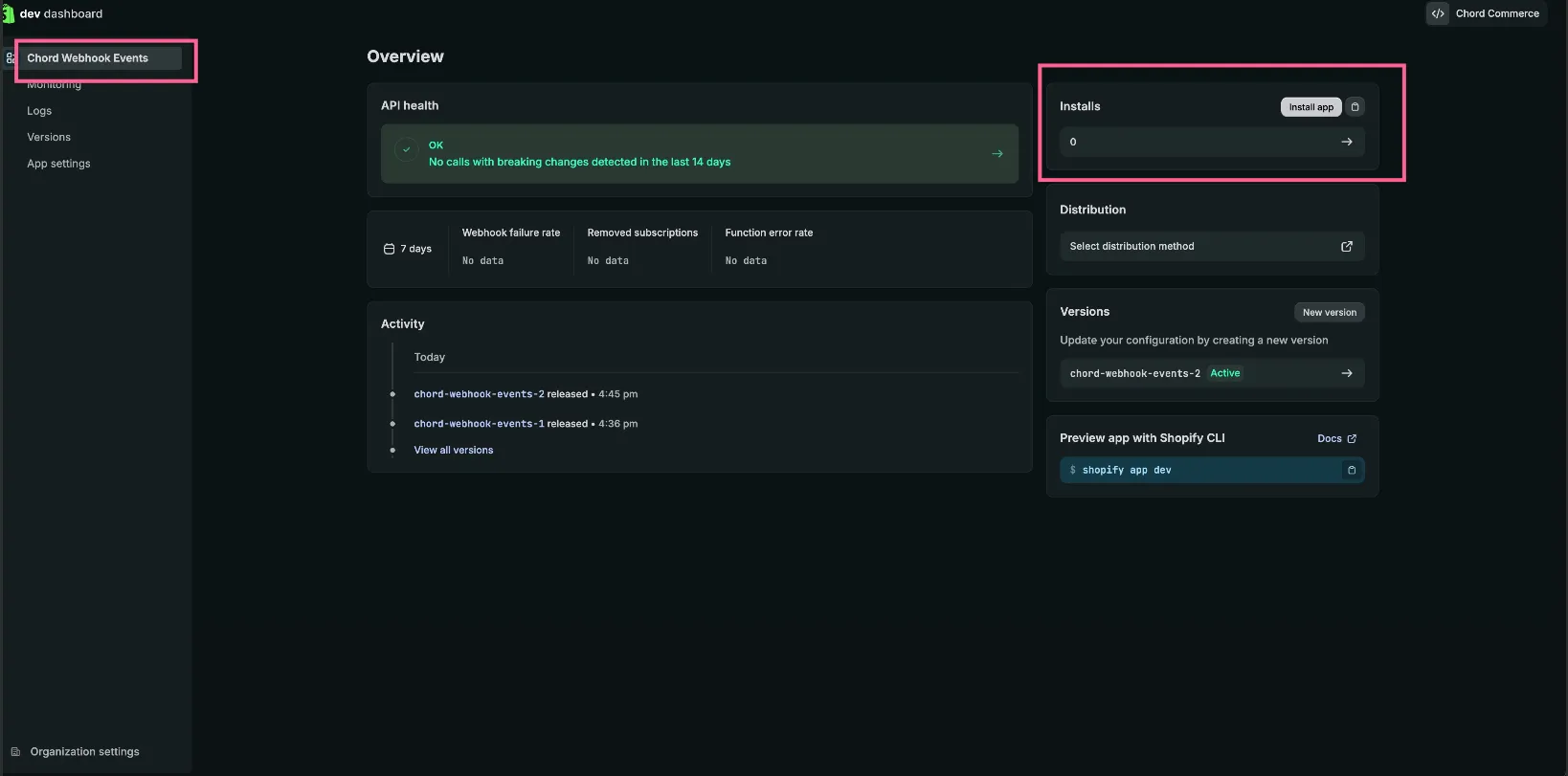
- Select your store
- Review the application scopes
- Click Install
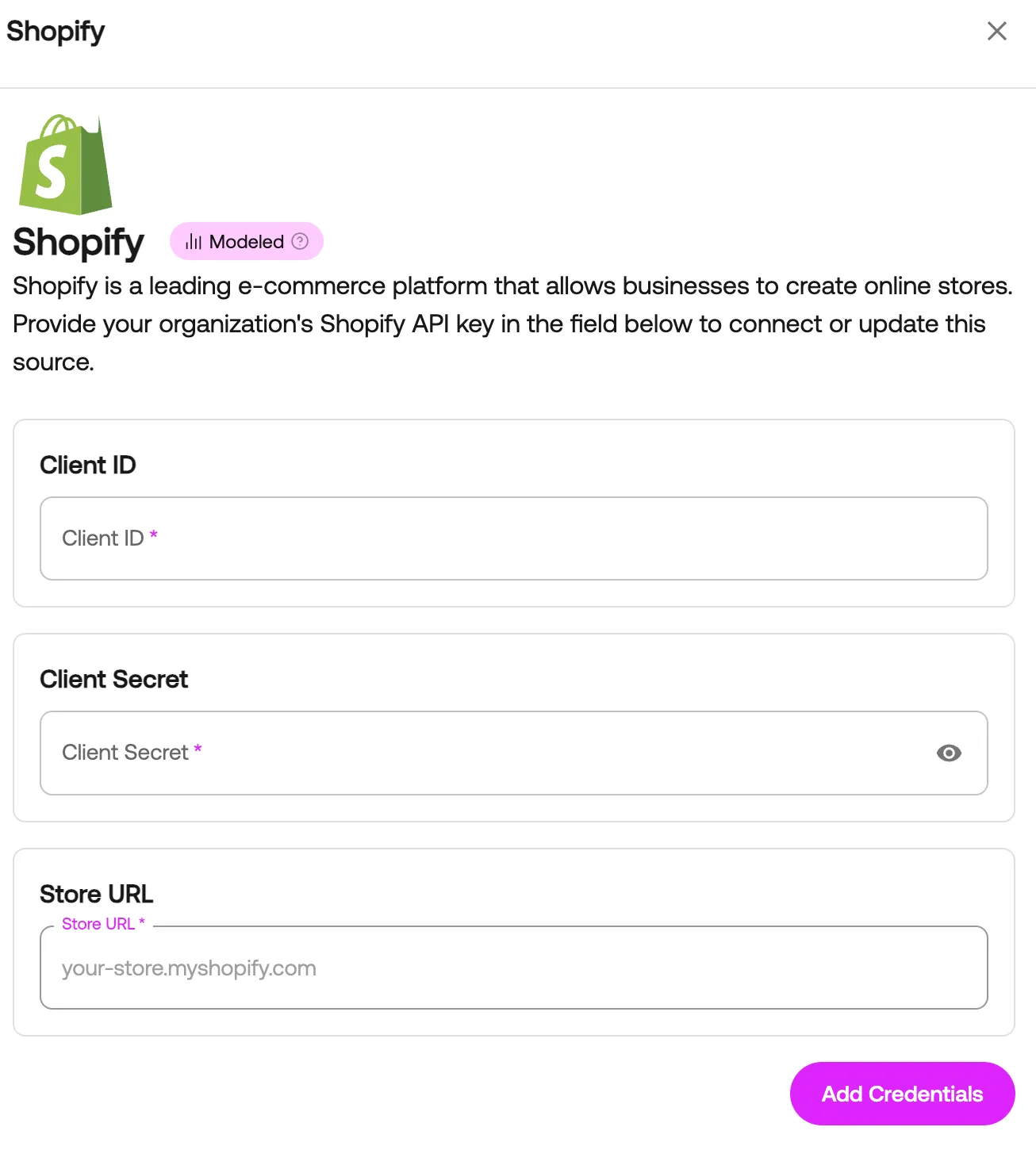
Step 4: Store your client credentials in Hub data sources
You can find the client credentials by visiting the app Settings page. You will need both the “Client ID” and “Secret”.
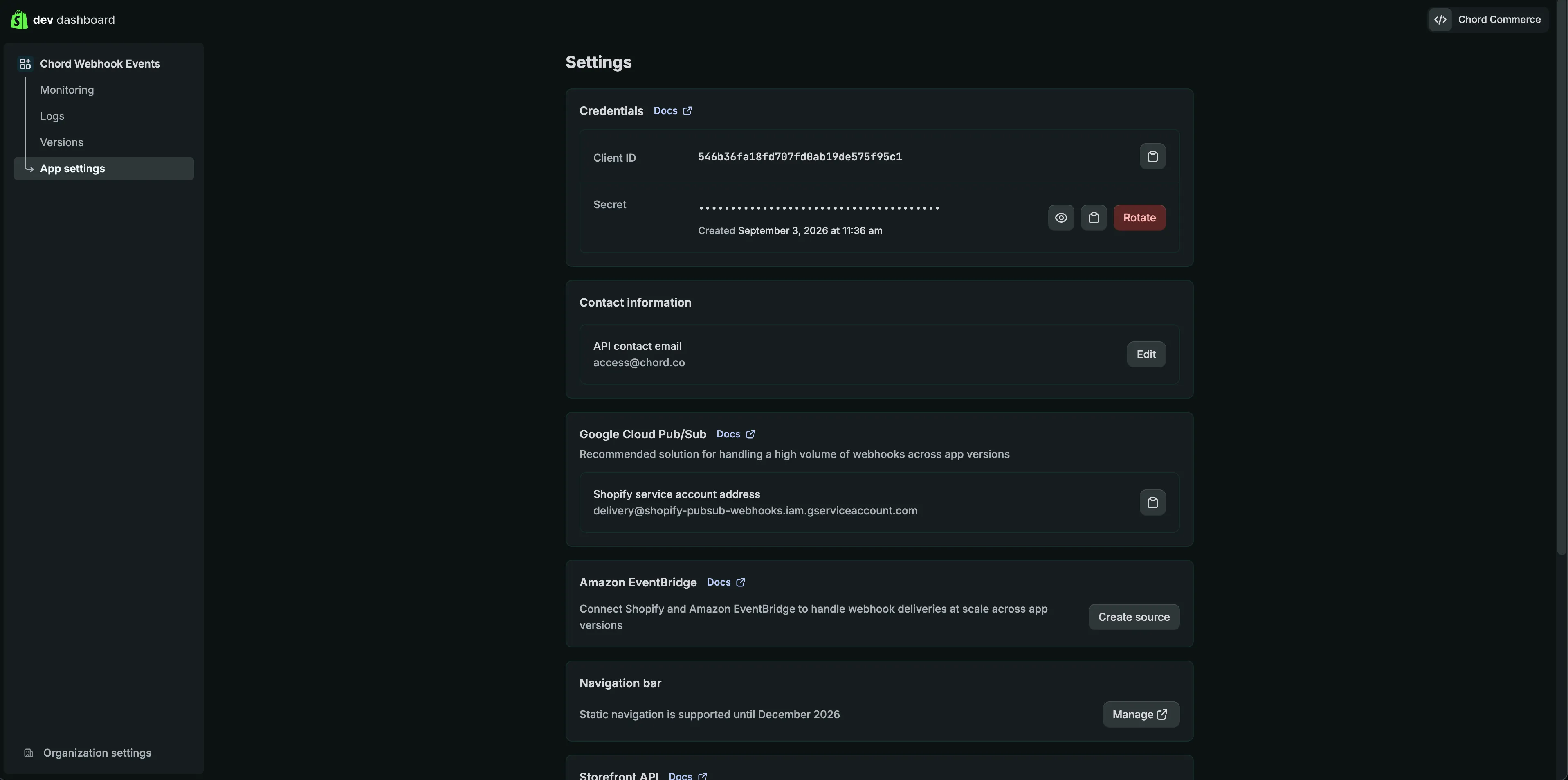
You will also need your store URL in the following format: your-store-url.myshopify.com. You can find your-store-url by visiting the store Admin page. The Admin landing page URL will look similar to the following:
https://admin.shopify.com/store/{{your-store-url}}/orders
The portion of the URL after store, is your store name that you will want to provide.
Now with the requisite information, navigate to the Hub data sources page. Click “Add New Source”, select “Shopify” and complete the form with the client ID, secret and URL.